Containers
Galaxy and Shared File Systems
Galaxy can be configured to run Pulsar with traditional job managers and just submit jobs
that launch containers. Simply setting docker_enabled on the job environment in Galaxy’s
job_conf.yml file will accomplish this.
There are limitations to using DRM systems that submit job scripts that launch containers though. Modern container scheduling environments (AWS Batch or Kubernetes or instance) are capable of scheduling containers directly. This is conceptually cleaner, persumably scales better, and side steps all sorts of issues for the deployer and developer such as configuring Docker and managing the interaction between the DRM and the container host server (i.e. the Docker server).
There are a couple approaches to scheduling containers directly in Galaxy - such as the Galaxy Kubernetes runner and the Galaxy AWS Batch runner. These approaches require Galaxy be deployed alongside the compute infrasture (i.e. on Amazon with the same EFS volume or inside of Kubernetes with the same mounts).
These two scenarios and some of their limitations are described below.
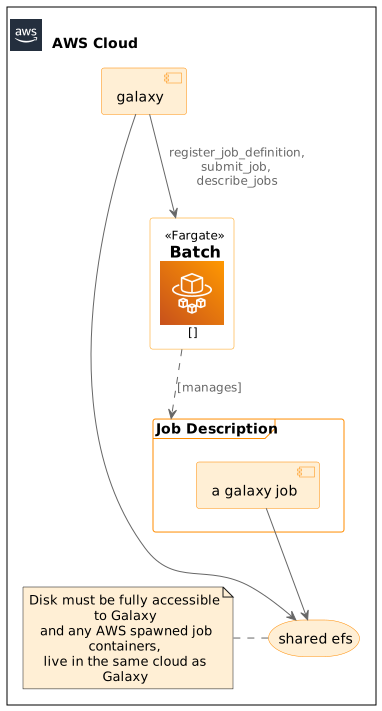
Deployment diagram for Galaxy’s AWS Batch job runner.
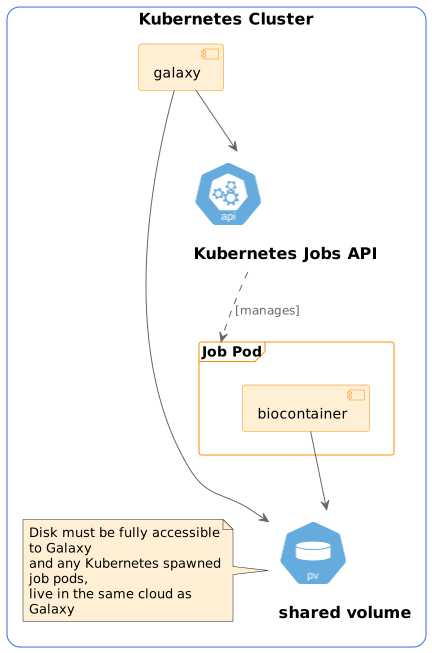
Deployment diagram for Galaxy’s Kubernetes job runner.
The most glaring disadvantage of not using Pulsar in the above scenarios is that Galaxy must be deployed in the same container with the same mounts as the job execution environment. This prevents leveraging external cloud compute, multi-cloud compute, and makes it unsuitable for common Galaxy use cases such as large public instances, Galaxy’s leveraging institution non-cloud storage, etc… Even within the same cloud - a large shared file system can be an expensive prospect and Pulsar may allow making use of buckets and such more tractable. Finally, Pulsar offers more options in terms of how to collect metadata which can have big implications in terms of metadata.
Co-execution
Galaxy job inputs and outputs are very flexible and staging up job inputs, configs, and scripts, and staging down results doesn’t map cleanly to cloud APIs and cannot be fully reasoned about until job runtime. For this reason, code that needs to know how stage Galaxy jobs up and down needs to run in the cloud when disk isn’t shared and Galaxy cannot do this directly. Galaxy jobs however are typically executed in Biocontainers that are minimal containers just for the tool being executed and not appropriate for executing Galaxy code.
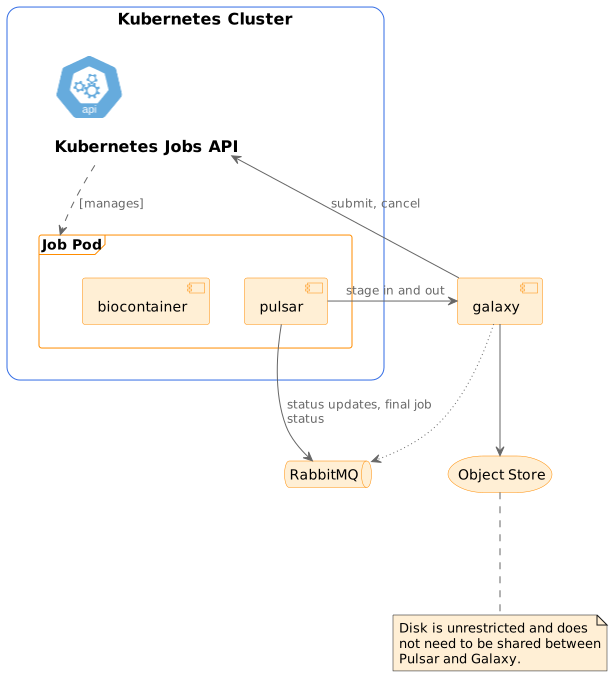
For this reason, the Pulsar runners that schedule containers will run a container beside (or before and after) that is responsible for staging the job up and down, communicating with Galaxy, etc..
Perhaps the most typical potential scenario is using the Kubernetes Job API along with a message queue for communication with Galaxy and a Biocontainer. A diagram for this deployment would look something like:
The modern Galaxy landscape is much more container driven, but the setup can be simplified to use Galaxy dependency resolution from within the “pulsar” container. This allows the tool and the staging code to live side-by-side and results in requesting only one container for the execution from the target container. The default Pulsar staging container has a conda environment configured out of the box and has some initial tooling to be connected to a CVM-FS available conda directory.
This one-container approach (staging+conda) is available with or without MQ and on either Kubernetes or against a GA4GH TES server. The TES version of this with RabbitMQ to mitigate communication looks like:
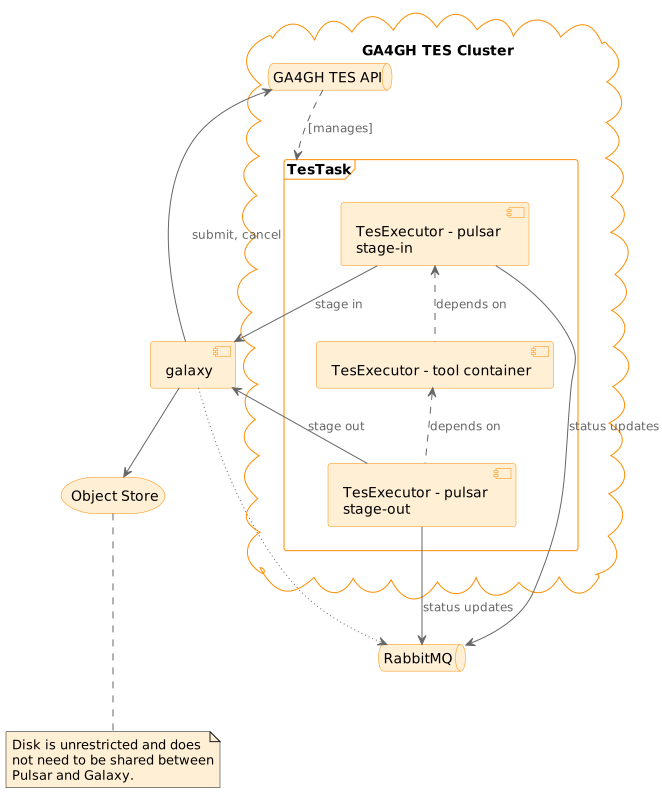
Notice when executing jobs on Kubernetes, the containers of the pod run concurrrently. The Pulsar container will compute a command-line and write it out, the tool container will wait for it on boot and execute it when available, while the Pulsar container waits for a return code from the tool container to proceed to staging out the job. In the GA4GH TES case, 3 containers are used instead of 2, but they run sequentially one at a time.
Typically, a MQ is needed to communicate between Pulsar and Galaxy even though the status of the job could potentially be inferred from the container scheduling environment. This is because Pulsar needs to transfer information about job state, etc. after the job is complete.
More experimentally this shouldn’t be needed if extended metadata is being collected because then the whole job state that needs to be ingested by Galaxy should be populated as part of the job. In this case it may be possible to get away without a MQ.
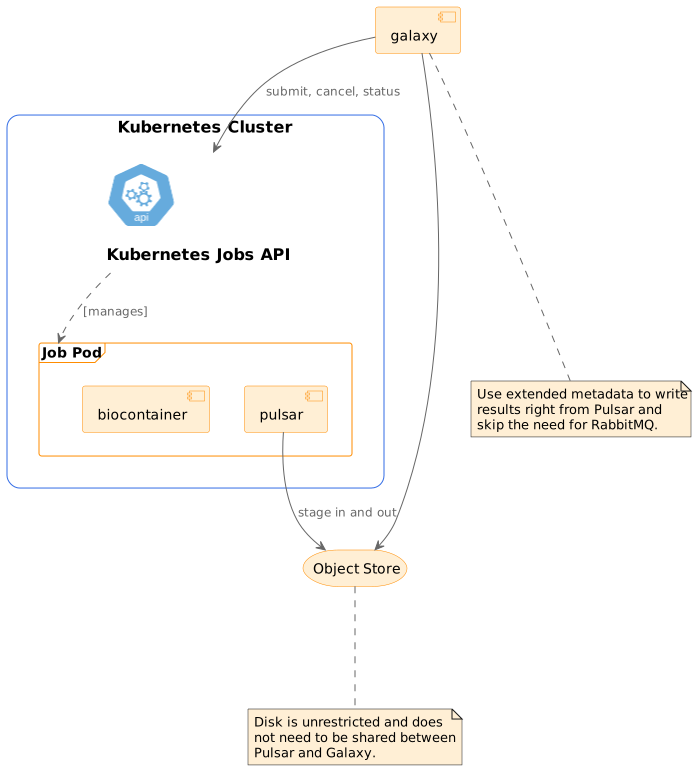
Deployment Scenarios
Kubernetes
Kuberentes job execution with a biocontainer for the tool and RabbitMQ for communicating with Galaxy.
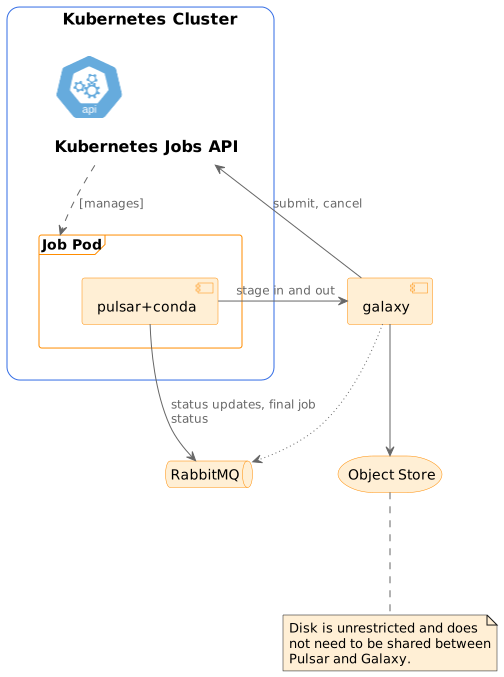
Kuberentes job execution with Conda dependencies for the tool and RabbitMQ for communicating with Galaxy.
Kuberentes job execution with a biocontainer for the tool and no message queue.
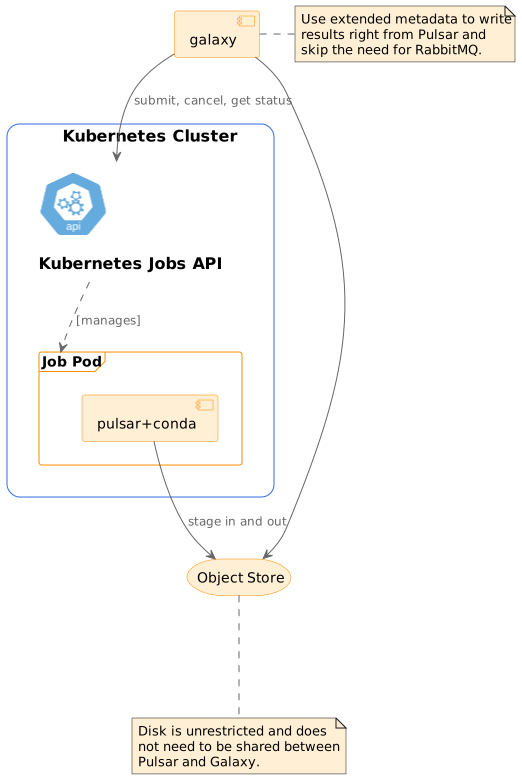
Kuberentes job execution with Conda dependencies for the tool and no message queue.
GA4GH TES
GA4GH TES job execution with a biocontainer for the tool and RabbitMQ for communicating with Galaxy.
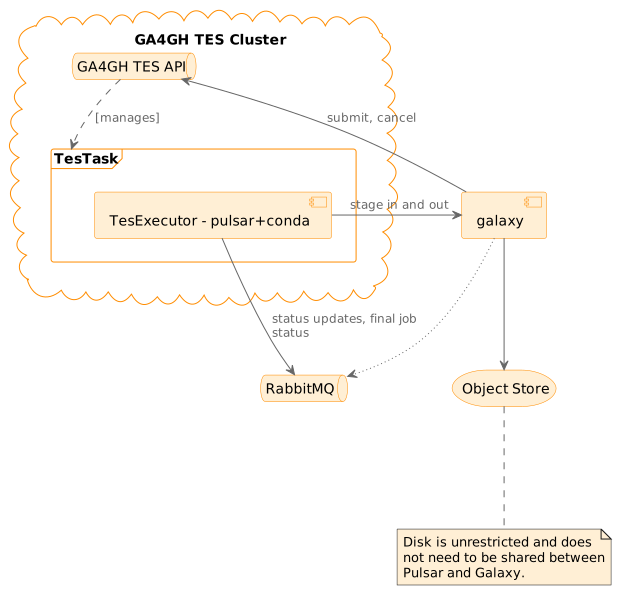
GA4GH TES job execution with Conda dependencies for the tool and RabbitMQ for communicating with Galaxy.
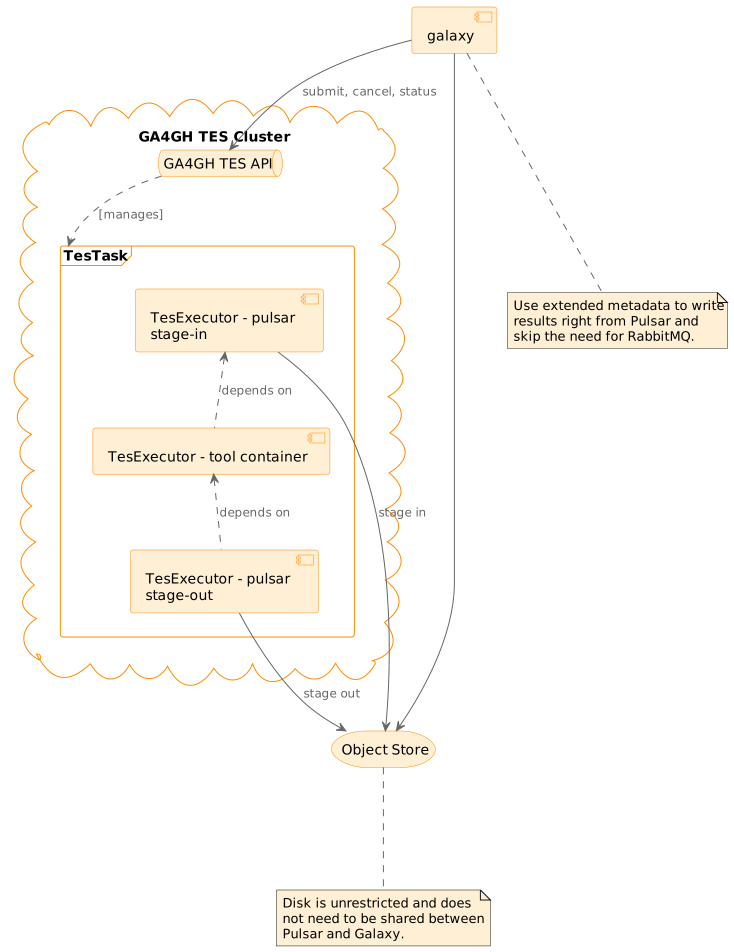
GA4GH TES job execution with a biocontainer for the tool and no message queue.
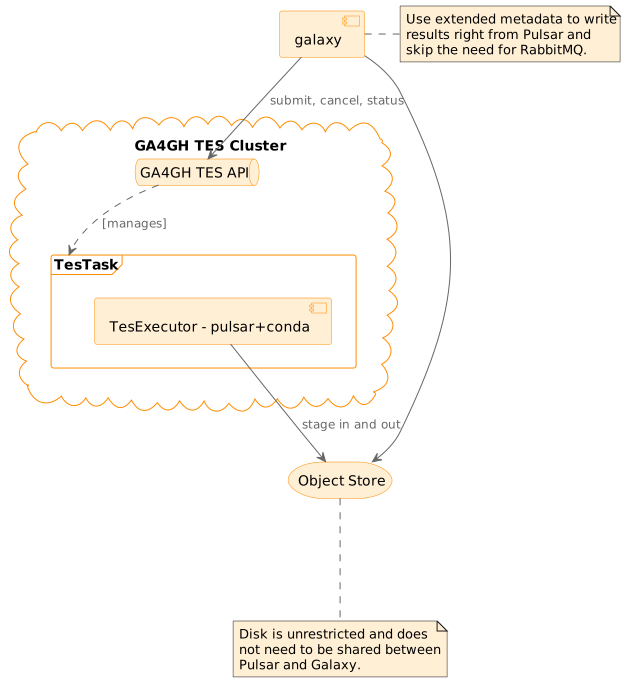
GA4GH TES job execution with Conda dependencies for the tool and no message queue.
A Galaxy job configuration (job_conf.yml) for using TES with Pulsar and RabbitMQ might look like:
runners:
   local:
      load: galaxy.jobs.runners.local:LocalJobRunner
   pulsar_tes:
      load: galaxy.jobs.runners.pulsar:PulsarTesJobRunner
      # RabbitMQ URL from Galaxy server.
      amqp_url: <amqp_url>
      # If Pulsar needs to talk to Galaxy at a particular host and port, set that here.
      #galaxy_url: <galaxy_url>

execution:
   default: pulsar_tes
   environments:
      local:
         runner: local
         local_slots: 1
      pulsar_tes:
         runner: pulsar_tes
         # TES URL to use.
         tes_url: <tes_url>
         pulsar_app_config:
            # This needs to be the RabbitMQ server, but this should be the host
            # and port that your TES nodes would connect to the server via.
            message_queue_url: <amqp_url>

tools:
- class: local
  environment: local
For testing on a Macbook with RabbitMQ installed via homebrew and Docker Desktop available and a Funnel with default configuration server running locally, a configuration might look like:
runners:
   local:
      load: galaxy.jobs.runners.local:LocalJobRunner
   pulsar_tes:
      load: galaxy.jobs.runners.pulsar:PulsarTesJobRunner
      # RabbitMQ URL from Galaxy server.
      amqp_url: amqp://guest:guest@localhost:5672//
      # Communicate to Pulsar nodes that Galaxy should be accessed on the Docker
      # host - the Macbook.
      galaxy_url: http://host.docker.internal:8080/

execution:
   default: pulsar_tes
   environments:
      local:
         runner: local
         local_slots: 1
      pulsar_tes:
         runner: pulsar_tes
         # Funnel will run on 8000 by default.
         tes_url: http://localhost:8000
         pulsar_app_config:
            message_queue_url: amqp://guest:guest@host.docker.internal:5672//

tools:
- class: local
  environment: local
Google Cloud Platform Batch
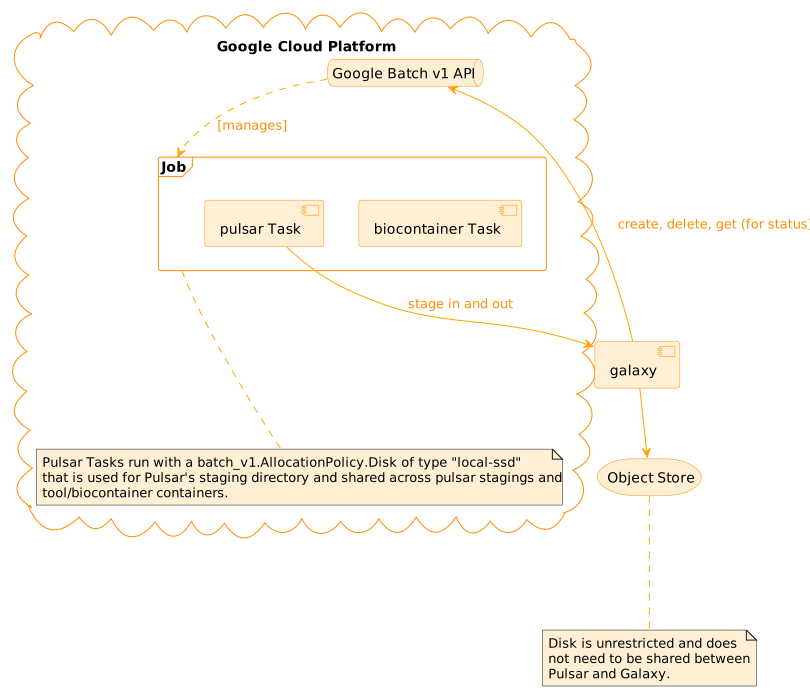
GA4GH TES job execution with a biocontainer for the tool and no message queue.
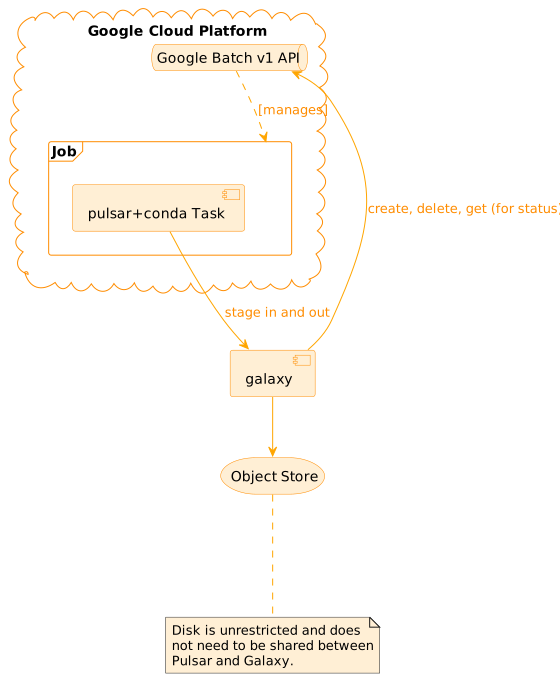
GA4GH TES job execution with Conda dependencies for the tool and no message queue.
Pulsar job destination options to configure these scenarios:
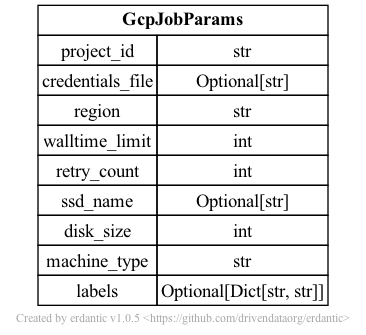
A Galaxy job configuration (job_conf.yml) for using GCP with Pulsar and RabbitMQ might look like:
runners:
   local:
      load: galaxy.jobs.runners.local:LocalJobRunner
   pulsar_gcp:
      load: galaxy.jobs.runners.pulsar:PulsarGcpBatchJobRunner
      # RabbitMQ URL from Galaxy server.
      amqp_url: <amqp_url>
      # If Pulsar needs to talk to Galaxy at a particular host and port, set that here.
      #galaxy_url: <galaxy_url>

execution:
   default: pulsar_gcp
   environments:
      local:
         runner: local
         local_slots: 1
      pulsar_gcp:
         runner: pulsar_gcp
         # GCP Project ID to use (required)
         project_id: project-id-here
         # GCP region or zone to use (optional)
         #region: us-central1
         # Max walltime to use in seconds (defaults to 60 * 60 * 24)
         #walltime_limit: 216000
         # GCP Credentials setup.
         #credentials_file: ~/.config/gcloud/application_default_credentials.json
         pulsar_app_config:
            # RabbitMQ URL the execute nodes should use to connect to the AMQP server.
            message_queue_url: <amqp_url>

tools:
- class: local
  environment: local
For testing these configurations - John setup a production-ish RabbitMQ server on
173.255.213.165 with user john and password password that is accessible from
anywhere. John also opened the router ports to expose their Macbook and set Galaxy
to bind to 0.0.0.0 using the bind option in the gunicorn section of galaxy.yml.
The job configuration for this test setup looked something like:
runners:
   local:
      load: galaxy.jobs.runners.local:LocalJobRunner
   pulsar_gcp:
      load: galaxy.jobs.runners.pulsar:PulsarGcpBatchJobRunner
      amqp_url: "amqp://john:password@173.255.213.165/"
      # If Pulsar needs to talk to Galaxy at a particular host and port, set that here.
      galaxy_url: http://71.162.7.202:8080/

execution:
   default: pulsar_gcp
   environments:
      local:
         runner: local
         local_slots: 1
      pulsar_gcp:
         runner: pulsar_gcp
         project_id: tonal-bloom-123435
         region: us-central1
         walltime_limit: 216000
         pulsar_app_config:
            # RabbitMQ URL the execute nodes should use to connect to the AMQP server.
            message_queue_url: "amqp://john:password@173.255.213.165/"

tools:
- class: local
  environment: local
AWS Batch
Work in progress.